
This website is a simple static website which was hosted on AWS with static assets on Amazon S3 storage, fronted by Amazon CloudFront content delivery network (CDN). The domain somecloudguy.com was registered on Amazon Route 53, while the actual DNS resolution and web application firewall (WAF) functionality was provided by CloudFlare (because AWS does not offer a free tier for their WAF while Cloudflare offers a generous free tier which is more than sufficient for my needs). When I decided to migrate it to Microsoft Azure, I thought this would be simple - just copy all assets over to Azure Storage, front it with Azure CDN, transfer the domain registration to Azure App Domains, and keep the WAF on Cloudflare, right? Turns out, it is not so simple. Let's go through the migration journey with all the little bumps encountered along the way.
1. Set up an Azure account
This requires registering with a Microsoft account. I created one with my personal email ID and phone number. A mandatory step in the sign-up process is phone number verification by text or call. Azure portal kept throwing "something went wrong" error every time I provided my Indian phone number for text or call for verification. I thought maybe it does not accept Indian numbers so I gave my US Google Voice number and it said VoIP numbers are not allowed! Since this is the age of AI, I asked Microsoft's Copilot AI to help me troubleshoot this, but it did not have an answer. Going back to the ancient method of reading through random StackOverflow threads found me a workaround - if the verification errors out on desktop, try signing up using Safari on a mobile device! Weird, I thought, but worth giving it a try. And it worked! I was able to successfully get a verification text and create my Free tier Azure account. Someone at Microsoft needs to explain what is this quirk!
2. Due diligence to avoid surprise bill
Coming from AWS, I have seen enough and more cases of people getting surprised by an unexpected large bill because they did not have billing alerts configured. I had created a free Azure account but just to be extra safe, I configured billing alerts to be sent when actual consumption exceeds $1 or forecasted consumption exceeds $2. This was straightforward to do.
3. Download all content from S3
I have a nested folder structure on my S3 bucket holding assets for this website such as the HTML and CSS files and images for each sub-section of the site. The AWS console does not give an option to download everything from an S3 bucket at once if there is a combination of folders and files. To the command line we go! I installed and configured AWS CLI on my personal machine and did a recursive copy of everything from the bucket to my local storage
4. Create Azure storage
I created an Azure storage account with the lowest cost option which is Locally-redundant storage (LRS). My S3 buckets were named after the website as www.somecloudguy.com but turns out Azure does not allow dots (.) in storage resource names so I had to think of an alternate naming convention. I enabled Static website hosting capability on the resource. Now it was time to upload all the content
5. Upload all content to Azure storage
I tried to upload everything from my local machine to Azure storage using the Azure portal but found out that it cannot upload files and folders with nested folder structure maintained if doing it on the portal. The way to do this is either using Azure CLI or by downloading Azure Storage Explorer application on local machine. I tried both options and found the Storage Explorer easy to use. It connects to Azure resources using an access key and can be used for uploading folders and files in bulk from local machine. Since I had static website hosting enabled, my website was live at the storage endpoint which is of the format https://something.zXX.web.core.windows.net/. Of course, I was not going to use this raw URL, I need to front it with a CDN and point my domain to it
6. Create Azure CDN
The Azure free subscription does not include either of their CDN offerings- Azure CDN and Azure Front Door. So, I had to first upgrade my subscription to a pay-as-you-go version. There are multiple products to choose from here - Azure Front Door is the new flagship edge product of Microsoft but it also comes with a cost of $35/month plus usage. I do not need this for my little website so I decided to go with the legacy Azure CDN. Having prior experience with Amazon CloudFront, I found the configuration process of Azure CDN more streamlined and easy to follow, especially pointing them to use the static website in storage and enabling HTTPS delivery with CDN-managed SSL certificates instead of having to procure a certificate and attach it to CDN configuration in AWS. My Azure CDN endpoint of the form https://something.azureedge.net/ was up and running, serving my website within minutes. Time to point the somecloudguy domain to it.
7. Validate domain and DNS resolution
Since my DNS resolution is handled by Cloudflare, I decided to continue that. I updated the CNAME records for www.somecloudguy.com to point to the Azure CDN endpoint. I had to temporarily disable proxying by Cloudflare so that www.somecloudguy.com resolves to CNAME which Azure CDN needs to validate. If proxy is enabled, Cloudflare overwrites the CNAME with an anycast IP and the validation would not happen. Once the validation is done, I enabled the proxy again so that traffic is routed via Cloudflare and the WAF rules can inspect the traffic. I had to add a redirect rule in Cloudflare to redirect the apex domain somecloudguy.com to www.somecloudguy.com as Azure CDN was unable to validate the root domain (because root domains typically cannot have a CNAME, though Cloudflare does it by their DNS flattening technology).
8. Transfer the domain registration
The last step was to migrate out the somecloudguy.com domain registered on Amazon Route53. From what I could find, Azure App Domains allows purchasing and registering new domains but does not have an option to transfer a live domain. In a way this was a blessing in disguise because it gave me the opportunity to simplify my setup by moving my domain management to Cloudflare since my DNS resolution is already being handled by Cloudflare. I got a transfer ID from Route 53 which I provided to Cloudflare and the domain was transferred within minutes seamlessly to Cloudflare.
If you want to visualize the differece in the architecture, this is the before-and-after of it:
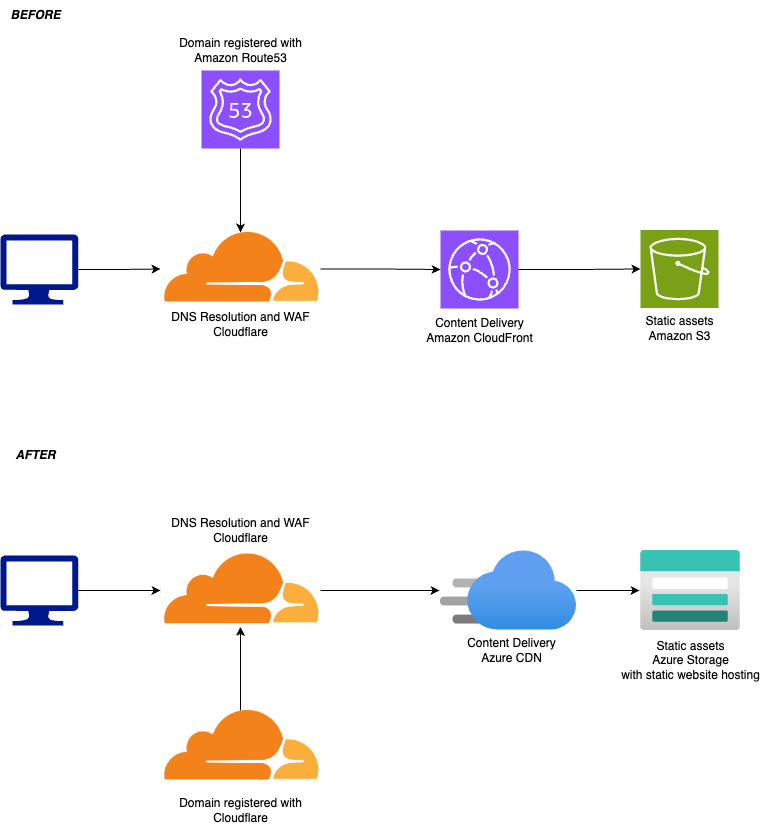
This was my first time working with the Azure ecosystem, hence the few minor hiccups along the way, which are valuable learnings for me. All in all, this was one afternoon's work and the website is up and running as before, as you can see because you are reading it here!